Q: What is my username/password?
A: Your login credentials are the same email and password that you used to first log in to the main site. If you have forgotten your login credentials or need assistance with your login information, please click
here.
Q: How do I update my contact information?
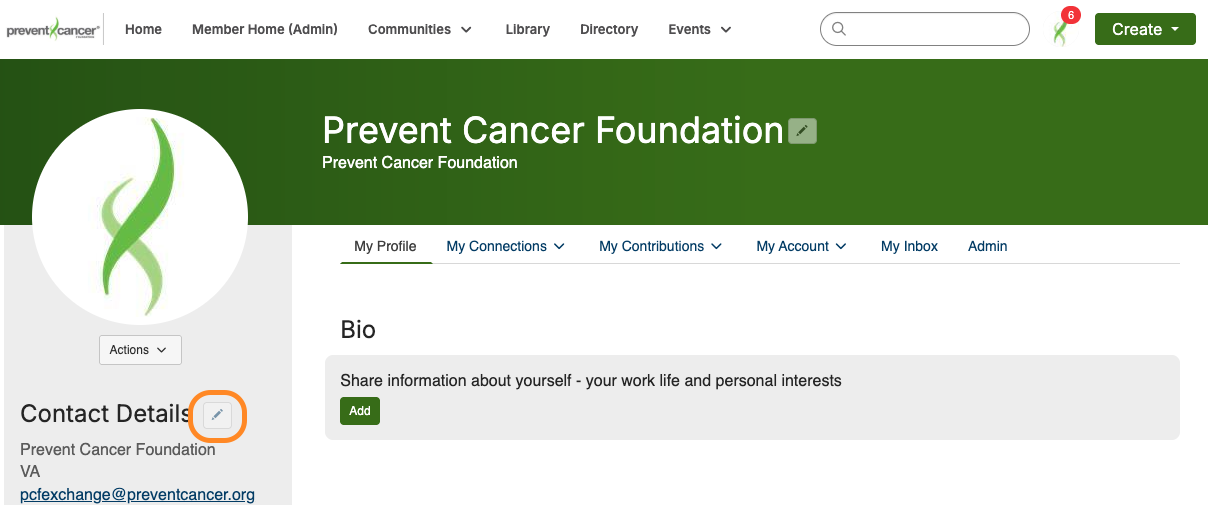
A: On your
profile page, select the pencil icon next to "Contact Details" in the left column.
Q: How do I control what information is visible in My Profile?
A: Navigate to your profile page, then select the "My Account" tab and choose "Privacy Settings" from the drop-down menu. This will let you control what information is visible to whom. In privacy settings, “Members only” refers to anyone who has registered for the platform. “My contacts” is anyone you have added as a contact on the platform. “Public” means it is viewable to . After you’ve made changes, click the “Save Changes” button at the bottom of the page.
Q: How do I set up my profile?
A:
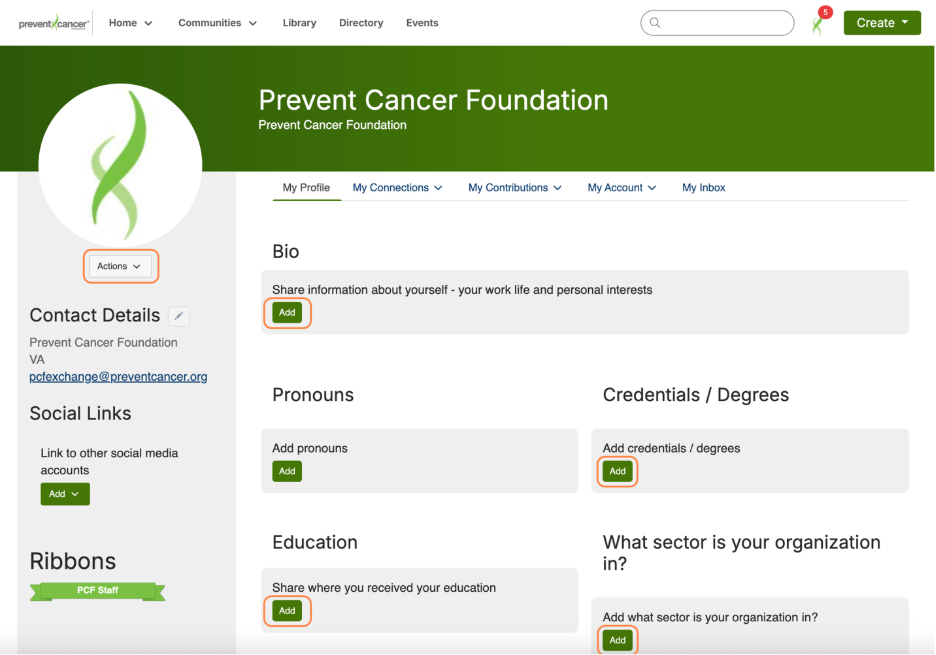
Click your initials or profile image in the top-right corner of the screen and select “Profile.” From there, you can upload a photo, update your contact details and include information such as your role, expertise and interests. A complete profile will help others find and connect with you.
Q: Can I access the platform on my phone or tablet?
A: Yes, the platform is mobile-friendly. However, some features—like uploading files—work best on a desktop browser.
Q: Who can join the site?
A: The Community Exchange is open to anyone affiliated with a community-based or public health organization, academic institution, health care system or other related fields. Members include, but are not limited to, nonprofit program managers, community health workers, patient navigators, patient advocates, researchers, nurses and more. To maintain the integrity and focus of our mission, we do not permit participation from for-profit companies or commercial entities. All member requests are reviewed before approval. This platform is not intended for cancer patients.
Q: What are the Community Guidelines?
Q: What do I do if I see a post or resource that seems inappropriate?
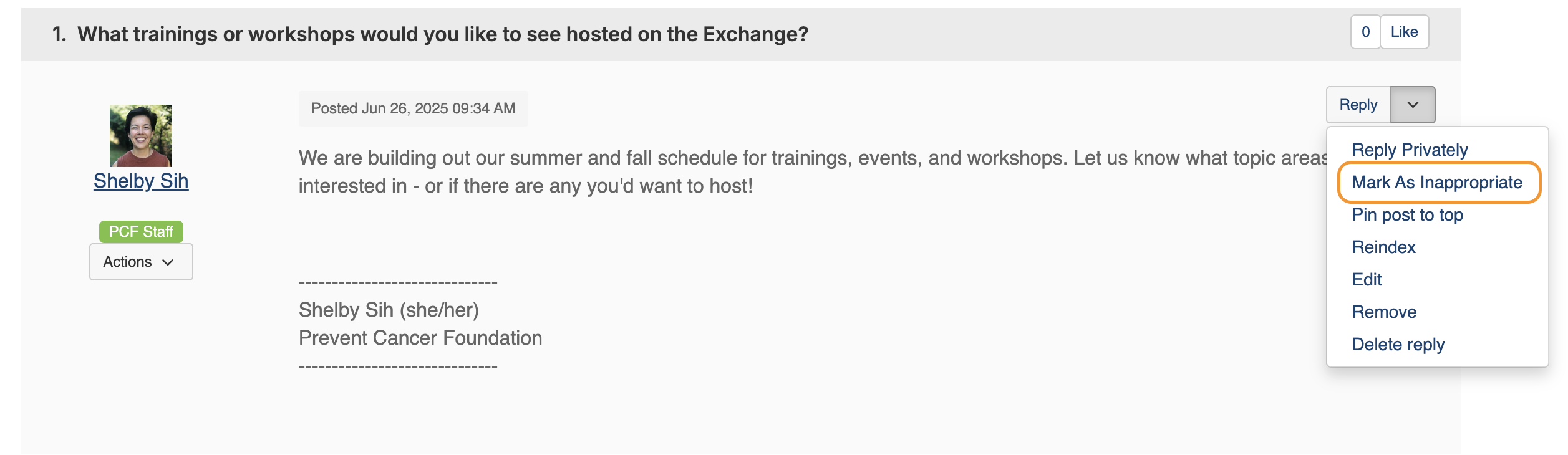
A: Each post has a “Mark as Inappropriate” option in the dropdown menu. When flagged, the post will be reviewed by the site moderators. If you believe something violates community standards, please mark it as such and email pcfexchange@preventcancer.org with details.
Contacts/Connections | Top
Q: How do I find other members?
A: Click the "Directory” link found in the main navigation bar. The Directory lets you search for other users based on name, organization and location, as well as filter searches based on profile fields, such as cancer focus area, expertise, role and more.
TIP: When searching in the Directory, enter at least three letters to activate auto-suggestions. Spelling matters—if you’re not seeing results, try retyping or using fewer characters to broaden the match. You can also browse a full list of members.
Q: How do I add contacts to my contact list?
A: There are several ways to add contacts. When you perform a search in the Directory, you will see an “Add as contact” button to the right of each person in your search results. Click this button to send a contact request. If you’re viewing an individual’s profile, you can click the contact request link to the right of his or her profile picture.
Q: Why should I add contacts to my contact list?
A: Creating this virtual address book makes it easy to send your contacts messages through the community site to stay in touch, ask questions or even build a referral network. Additionally, when you view another member’s profile, you’ll be able to see any mutual contacts. You can also choose to let your contacts view certain information within your profile that others can't see.
Q: Can I send private messages to other members?
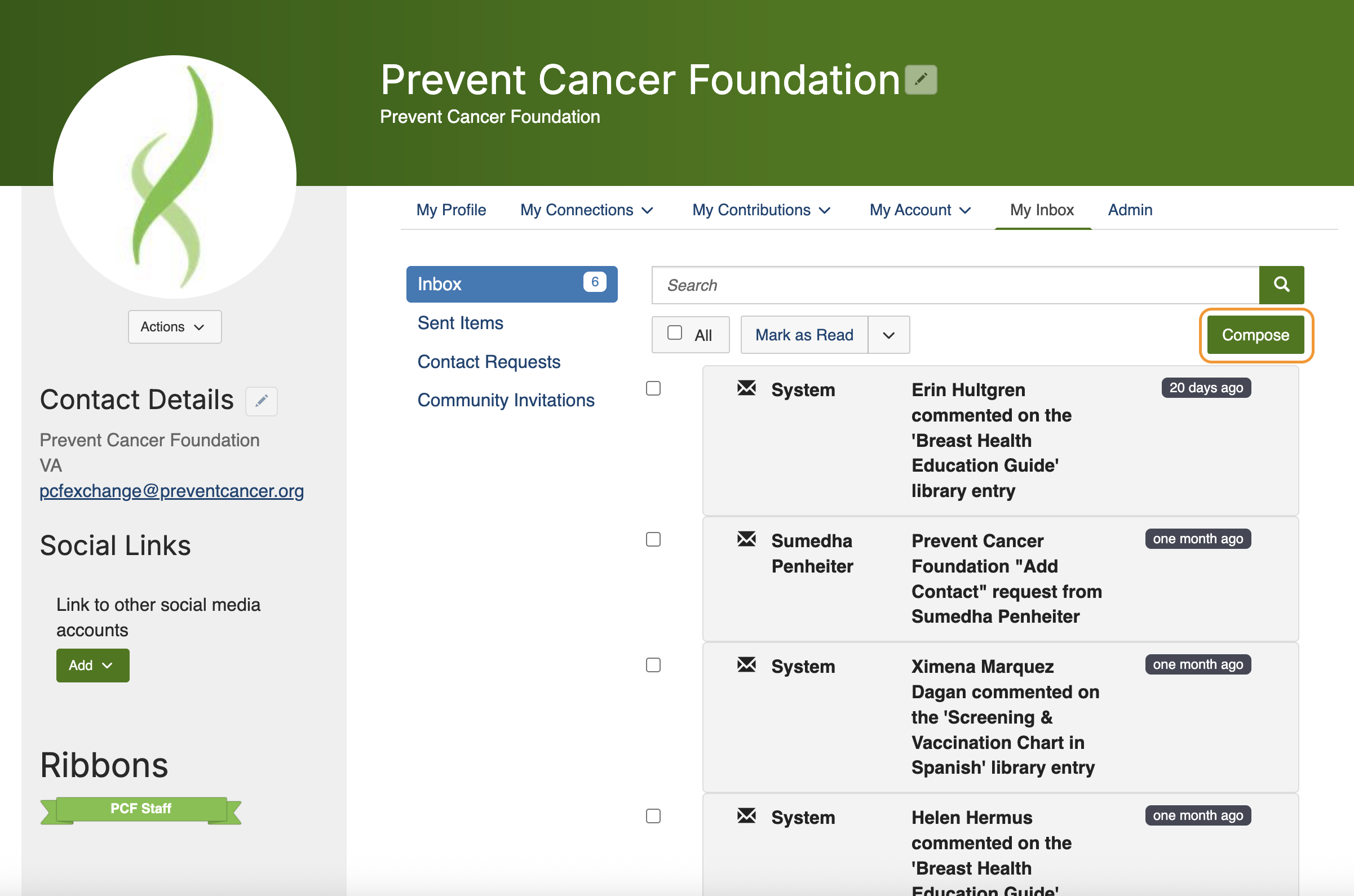
A: Yes. From your inbox (accessible by clicking your profile image > Inbox), click “Compose,” search for the member’s name and write your message. This allows for direct, private communication outside of discussion posts.

Communities/Discussions | Top
Q: What are communities?
A: Communities allow you to participate in discussions and share resources with other members in closed or open groups.
Q: What communities do I already belong to?
A: Go to “Communities” in the main navigation bar. Select “My Communities” to view the communities you currently belong to.
Q: How do I join/subscribe to a community and the affiliated discussion group?
A: Click on “Communities” in the main navigation and select “Communities I Can Join” to see a list of available communities. Click on the community that you wish to join and simply click "Join," then choose a delivery option for posts to customize how often you are notified (Real Time, Daily Digest or No Email).
Q: Is there another way to join or post in a community?
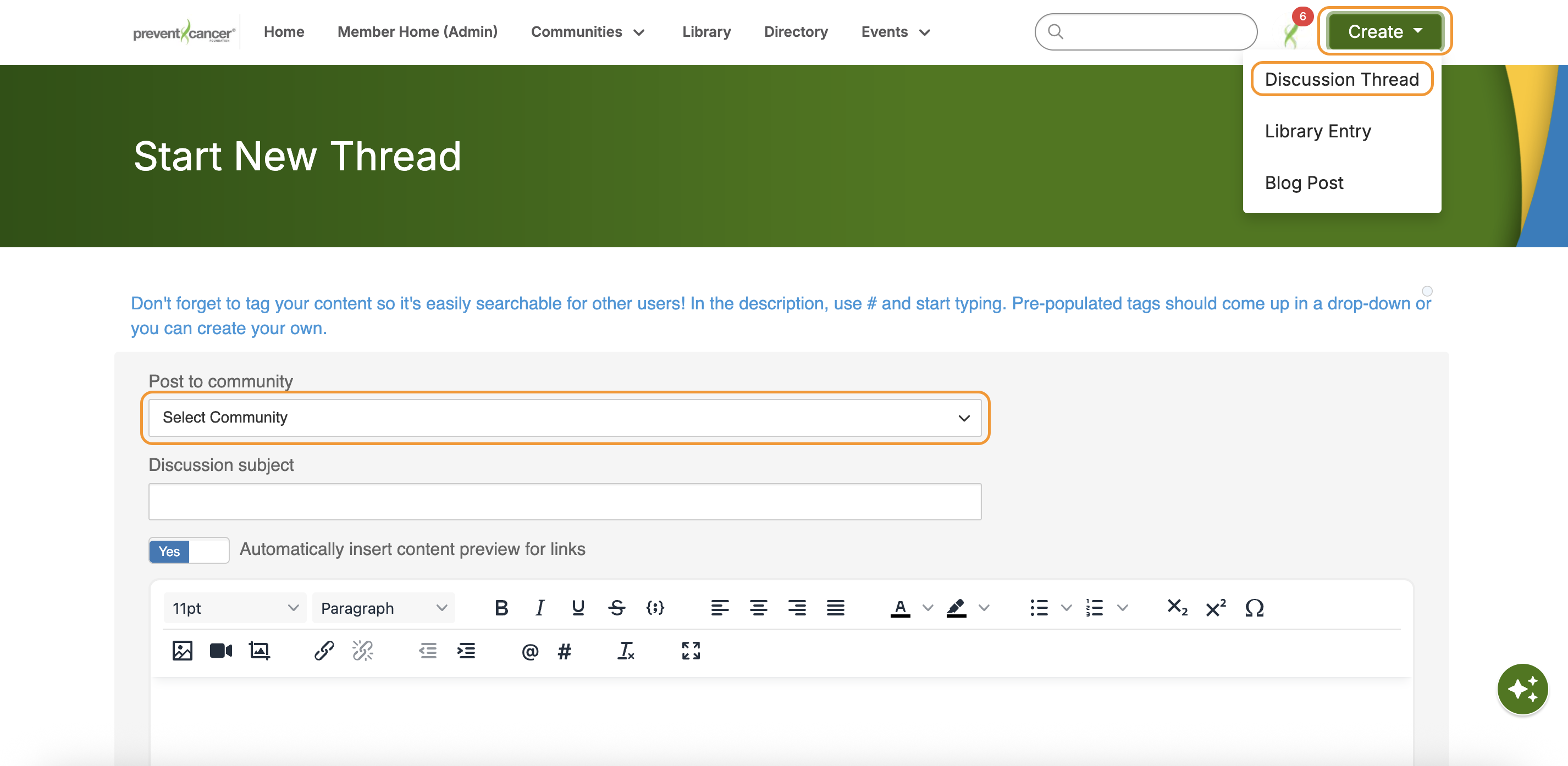
A: Yes. You can also click “Create” in the top-right navigation, select “Discussion Thread,” and then choose the community you’d like to post in. This offers a quick and direct posting method.
Q: How can I control the frequency and format of emails I receive?
A: Navigate to your profile and click on the "My Account" tab. Choose "Community Notifications" from the drop-down menu. On that page, you can view and control your email preferences.
For each discussion, you have the following delivery options:
- Real time: Sends an email every time a new message is posted.
- Daily digest: Sends one email to you per day, consolidating all of the posts from the previous day.
- No email: Allows you to be part of the Exchange without having emails sent to you. You can still post and read others’ messages by logging into the community site.
- Consolidated weekly digest: Allows you to combine multiple communities into one notification email per week.
Q: How do I leave a community or unsubscribe from a discussion?
A: Go to your profile and click on the "My Account" tab. Choose "Community Notifications" from the drop-down menu. Here, you will see a list of available communities and those you’ve subscribed to. Select "Leave Community” under the Actions column for the discussions you wish to leave.
Q: How do I respond to others’ posts?
A: To respond to a discussion post, navigate to the discussion post and click “Reply" to send your message to the entire community. To send a message to only the author of the post, select “Reply Privately” (located in the "Reply" drop-down).
Q: How do I start a new discussion thread?
A: Click Create in the menu bar, select Discussion Thread, choose the community you want to post in, then add your title and message. When you’re ready, click Post to share it with the group.
Q: I’m having trouble viewing the HTML email messages. How do I fix this?
A: If images are not appearing in your email, it is likely that your email service provider is set to suppress images. This should be something you can change in your security or viewing options. If you would rather receive a text-based email, go to your profile page within the Exchange and click on the "My Account" tab. Choose "Community Notifications" from the drop-down menu. Select the “Plain Text” format option for each of the discussions you are subscribed to.
Q: Can I search for posts across all the communities?
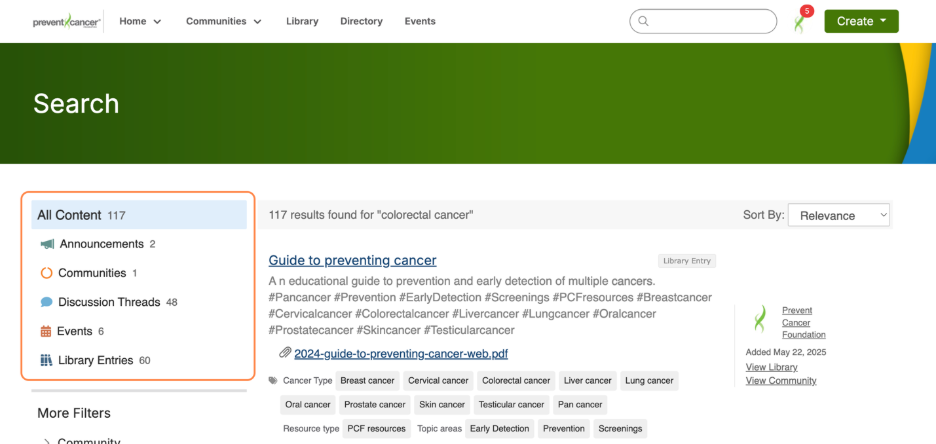
A: Yes, by entering a keyword in the search bar located in the main navigation. To refine your search results, select one or more facets from the menu on the left side.
Q: How do I see a listing of all of the posts to a specific Community?
A: Locate the community you are interested in viewing. Click through the community's landing page, then click on the “Discussions” tab. If you see a post you’re interested in, click the subject line which will take you to the entire thread.
Libraries | Top
Q: What are “tags” for?
A: Tags are a great way to organize and categorize content on your site. Tags can be applied to library entries, discussions, replies and events. Tagged items are prioritized in the search results.
Q: Can I create my own tags?
A: Yes! If the tag you want isn’t in the preset list, you can create a new one. After typing your tag, be sure to select it from the dropdown menu to activate it. Simply typing it won’t make it searchable.
Q: How do I find resources that may have been uploaded by other members?
A: Visit the main Library page to browse tagged folders by topic or use the search bar at the top of the site. You can filter by tag, date and file type. Additionally, each community has its own library tab that is only accessible to its members.
Q: How do the libraries get populated?
A: The libraries are populated in two ways:
- When you include an attachment in a discussion post, the system automatically places it in the affiliated library.
- You can also upload documents directly to a library by clicking the "Create New Library Entry" button on the main home page or any community's library page. Library resources are not required to be associated with a discussion thread.
Q: How do I upload a file?
A: Select the "Create” button and go to “Library Entry". You will need to designate which community you want to upload it to. You can also add a resource within each community’s library by going to the library tab and creating a new entry. Please note that uploading a document is accomplished by completing a few steps, and each step must be completed before you can move on to the next:
-
Select the library you’d like to upload it to and, if you so choose, the folder you’d like to upload it to. Then, choose an Entry Type (most will be Standard Files, but be cognizant of any copyright licensed material). Once you have completed these steps, please click “Next.”
Q: Why does the folder say “No Results” even though I added a file?
A: It’s likely that your file wasn’t properly tagged. Try re-tagging and make sure you click the tag from the dropdown to apply it. Occasionally, it may take a few minutes for the file to appear due to indexing.
Q: What kind of files can I upload?
A: The system supports dozens of file types including hyperlinks, standard files (Word, Excel, PowerPoint), webinars, images and YouTube videos.
AI & privacy | Top
Q: Is the search function powered by AI?
A: Yes, the platform includes an AI-powered search assistant in both the search bar and the bottom right corner. You can ask it natural-language questions like "How do I plan a screening event?" or "Where can I find resources for rural outreach?" It pulls from publicly available platform content like discussions and library entries. It does not pull from the internet.
Q: Is my information private?
A: The platform operates as a “closed community,” which means that only approved users have access. Your private messages and profile information are only visible based on your privacy settings. The AI assistant does not access private inboxes or unpublished content.